



Being an adult and a relatively busy person, I constantly use some tool or other for taking notes. The main goal is to have a convenient organizer, not to forget to get things done, and to keep work notes. For example, I usually break a big task down right in the notes, and later add the time estimates there too.
Note-taking tools
It so happens that every few years I have to change my notes and organizer tool. Over my whole working life I've tried everything: RTM, TaDa and Todoist, and more sophisticated software built by the commandments of GTD, and plain calendars and text files, and I moved everything to the phone, and pulled it back to the computer — you name it. So you could say I'm a to-do-er (or a to-doer?) with a long record.
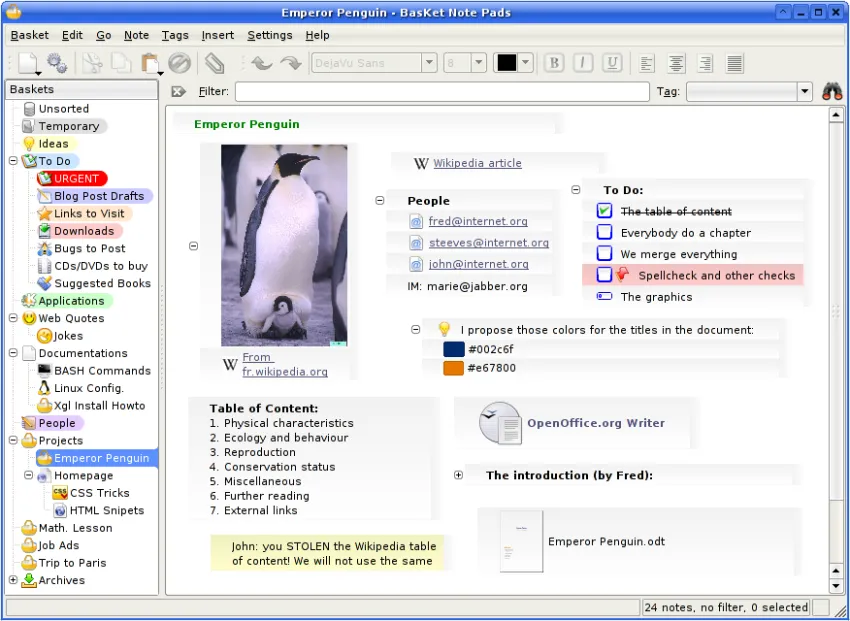
At some point, I settled on a setup where everything tied to dates went into a regular calendar like Outlook (only on Linux), and notes and to-do lists lived in the mega-app BasKet. It was an excellent KDE app, I even made an rsync-based sync of notes for it to keep them in sync between home computers. Smartphones weren't widespread back then, and an important feature like syncing over the internet was met with puzzlement rather than anything else. The app looked like this (it looked great):
However, 3–4 years later it turned out that phones were in our hands more and more often, computers were both at home and at the office, there could be two offices, and syncing all of it would come in very handy. I had to close the (by then seemingly unmaintained) BasKet and pick tools all over again. And for several more years I settled on:
— Evernote for notes
— Trello for kanban boards
— Google Calendar for things tied to particular days
Why have these notes at all
Using this setup was basically fine: everything is in sync, available from all kinds of devices, and the apps themselves are pretty good. But it always bugged me that there were as many as three apps, while I'd rather get by with one.
Google Calendar was the first to go. I replaced it with a kanban board with the following rules:
— if a task is within the next 30 days or so, it goes on the board
— if it's later, it goes to a separate Waiting list, together with tasks that depend on/wait for external events; that list lives on another board
— the board has 7 columns called, as you might guess, Monday, Tuesday, Wednesday, Thursday, Friday, Saturday and Sunday
— if a task is for the coming day, I add it to the column without a date
— if a task has to be done in a week or two, I put the date before its title, for example [31.08] Send the monthly invoice to the client.
For example:
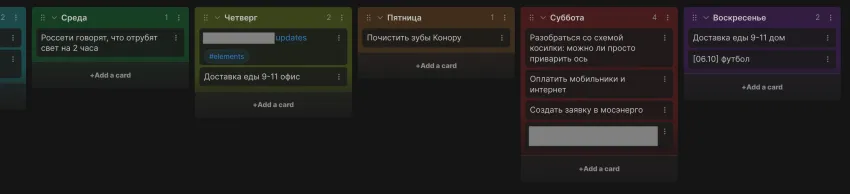
This way I see the picture of the current week right away and can guess what the next one will be like. The key point is that a task gets into this "calendar" only if it really has to be done on that day. If it can be done today, or tomorrow, or in 3 days — doesn't matter, but it has to be done — then it goes to another kanban board, which is the so-called Eisenhower matrix (obviously, made as 4 columns instead of a 2x2 square):
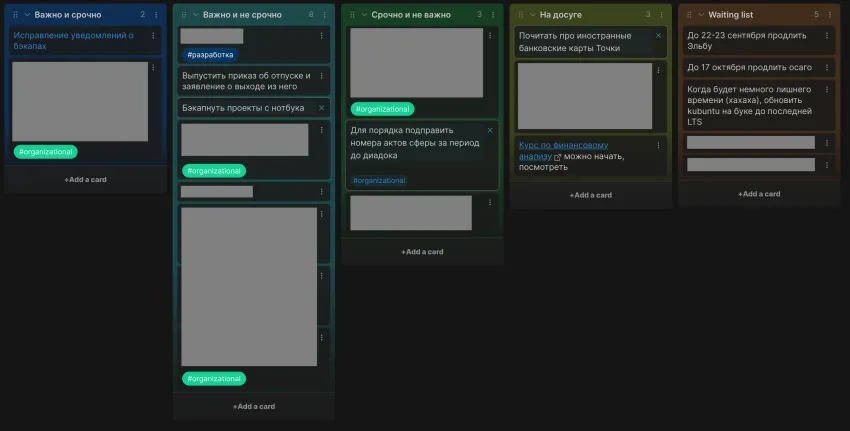
The concept is well known, it means sorting tasks by priority, plus I added a Waiting list column on the right. It gets tasks that either have to be started not soon (say, in two months), or depend on external events or other people's actions (for example, "When the client pays the invoice, buy food"). Accordingly, when the time comes or the external event happens, the task is dragged to the corresponding column.
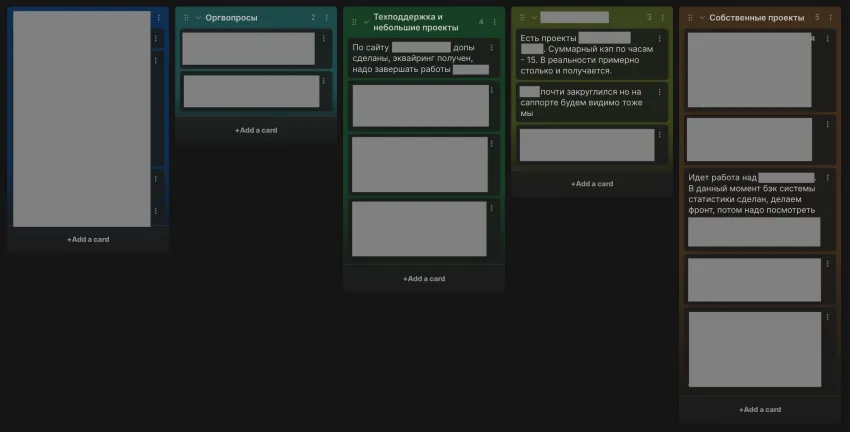
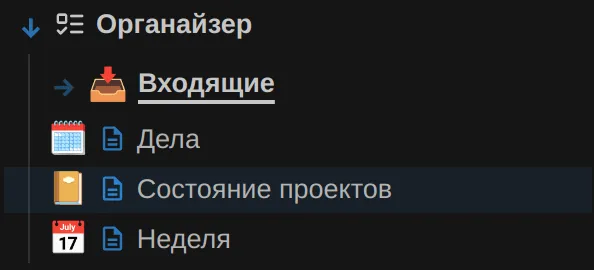
Two more elements complete my system. One is the traditional "Inbox" folder, where the GTD gurus told us to dump all new notes, ideas, lists and links before they are sorted. And the other is one more kanban board called "Project status". I came up with it to periodically write down the progress of the projects I take part in, at a high level, as short summaries. For example, "stage 2 done, the payment is due next week", or "working on the statistics system", "week 14 of negotiations, no news". For each project I keep about 5 cards with such latest entries, just to be able to quickly get a rough idea of how things are. And sometimes, when a project freezes for a while, it helps to remember where we stopped and pick up from there.
So here they are, the four horsemen of the electronic organizer: Inbox, Tasks, Project status, Week, Namjoon, Jungkook, Chingachgook, Goiko, Mitić, love you guys:
Besides the organizer, the second purpose of a note system for me, as probably for many, is keeping some topical notebooks (or, in fashionable terms, knowledge bases). For example, I have a "House" notebook with phone numbers of plasterers, engineers, builders and gardeners, a wish list of what to plant or paint where, and dates when to service the boiler or change the oil in the generator. There's a notebook about Unity (my son and I are learning it) with links to all kinds of assets, manuals and videos. And there's a notebook for every work project with everything in it: budget calculations, task breakdowns, short to-dos for active tasks, useful links (to Figma, specs, manuals, etc.) And one more notebook like that for useful info on bookkeeping (which I do myself).
The organizer together with the topical notebooks is my use case for all these notes and kanbans. A task management system, so to speak. The main condition for this whole system to work is going back to it regularly for a review. In other words, once a week or so I open all these notebooks and pages, read the project statuses, contemplate the lists, change priorities, move tasks from the waiting list if needed, go through the inbox, and so on. It usually takes no more than 15 minutes. And if you don't forget to do it, the system is basically enough to solve the main task of all this organizing. Which task, as citizen Allen said, is not to see the list of "what to do", but to be able to quickly see, at any moment, the list of what you are not doing yet. To know that you haven't missed anything.
Notion
For all of the above, a system of full-text notes and kanban boards is enough. Back to the tools: kanban boards work well in Trello, so I managed to get rid of the calendar almost completely. The only thing it is still good for is keeping the birthdays of various people. And even then, I still remember most of them myself, the calendar is more of a safety net. Many people also use a calendar for its reminders/notifications. Personally, these notifications drive me mad: in the system described above, many tasks set for some Thursday can be done at any time depending on circumstances. For example, after the rain. So a reminder that dings at 2 PM is usually out of place. For me, reminders only work for scheduled online calls via Teams. Though I usually write those down too, and so I remember them.
So for several years I used Evernote + Trello, even though Evernote's silly note format and the copy+paste problems that came with it annoyed me from the very start. And at the same time I wanted to cut the list of tools down to one. That is, what I basically needed was Evernote with kanban boards. I checked from time to time, but every time it turned out that there were surprisingly few such suitable apps (convenient ones, at least).
Until one day I came across Notion, and it turned out to be just that: convenient, with a normal note format (markdown, more or less), with kanban support, with databases to play with (though I didn't really need that), all living in the cloud, and you can join other people's projects. I moved there right away and, except for minor flaws, was as happy as can be. The kanbans are convenient, the editor doesn't glitch, dragging tasks and notes between folder-notebooks is easy, there are tables, there are some more advanced gadgets I never used, there's even collaboration. The only slightly irritating thing was the weird Folder view system, which was needed every time to make a kanban or a list of contents. But I quickly got used to it too and kept using only Notion.
Obsidian
And everything would have been fine, but a few days ago the Notion team announced that, due to another package of US sanctions, they would soon delete all accounts from Russia. Or something like that. I looked through the list of domestic replacements and wasn't impressed (not because they're bad — they're mostly about something else), and then I remembered seeing guides a few times where people told how and why they use Obsidian. I didn't watch those guides back then, because why — I was fine as it was. And I didn't watch the guides this time either — I went straight to the app, quickly realized that this was exactly the app I needed, and set about moving.
Obsidian is not cloud software but a regular one, installed on users' devices. With a "thick" client, that is, all the main features are implemented in the installed software, not somewhere on a server. Which, by the way, isn't even needed in this case, but more on that later. The app supports everything you need: Win, Mac, iOS, Android and Linux (appimage, snap, deb, flatpack), so I took the deb package and installed it right away.
It's worth noting right away that it's not GPL, but at least it's free for personal use. This, along with storing notes locally, suggests that even if some bans or sanctions come up in the future, nobody can stop you from keeping the already installed version forever, just like with IntelliJ IDEs.
Importing from Notion
After installing, I set about importing the notes. It turned out to be easy, here's the list of steps:
- Go to Notion
- Open the properties of the notes folder (the icon with three dots)
- Choose export
- Choose HTML as the format
- Turn on Include subpages and don't forget Create subdirectories
- Click export, wait for the file to download (or for a download link to arrive by email)
- Go to Obsidian, install the Importer plugin
- Open it, choose the Notion (zip) file format
- Specify the folder to import into, or
/for the root folder - Click Import and that's it.
Since the note format is markdown both here and there, everything imports mostly fine. But where images are embedded, they show up in Obsidian as separate files with links to them in the right notes. A few super old notes that once got into Notion via an import from Evernote broke a bit and came out crooked, otherwise it went great.
By the way, note that in Obsidian a notes folder is a folder, not a note. That is, clicking it doesn't open a "root" note, it just shows the notes inside. However, if you install the Folder notes plugin, the "root" notes from Notion will be imported and the corresponding folder notes will be created, for those who prefer folders to behave this way.
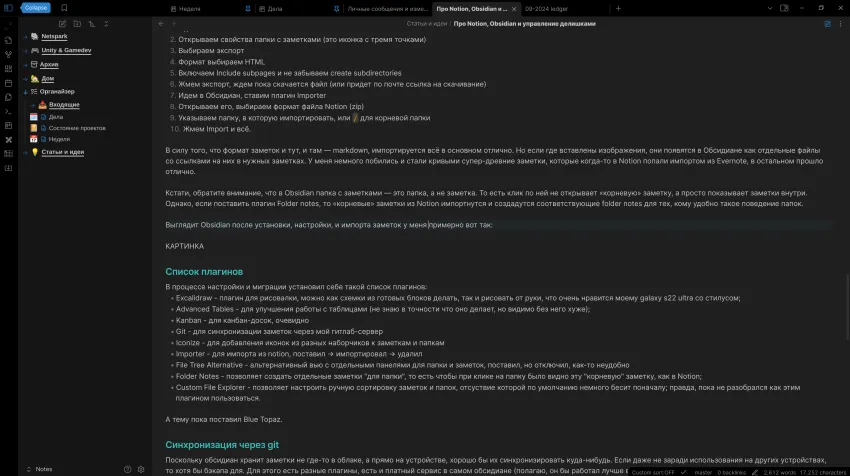
After installing, setting up and importing the notes, my Obsidian looks roughly like this:
List of plugins
While setting things up and migrating, I installed the following plugins:
— Excalidraw — a drawing plugin, you can make diagrams from ready-made blocks or draw by hand, which my Galaxy S22 Ultra with its stylus really likes
— Advanced Tables — for better work with tables (I don't know exactly what it does, but apparently it's worse without it)
— Kanban — for kanban boards, obviously
— Git — for syncing notes via my GitLab server
— Iconize — for adding icons from various sets to notes and folders
— Importer — for importing from Notion: installed → imported → removed
— File Tree Alternative — an alternative view with separate panes for folders and notes; installed it but turned it off, it's somewhat inconvenient
— Folder Notes — lets you create separate notes "for a folder", so that clicking a folder shows this "root" note, like in Notion
— Custom File Explorer — lets you set up manual sorting of notes and folders, the lack of which by default is a bit annoying at first; though I haven't figured out how to use this plugin yet
And as for the theme, I've installed Blue Topaz for now.
Syncing via git
Since Obsidian stores notes not somewhere in the cloud but right on the device, it would be good to sync them somewhere. If not for using them on other devices, then at least for the sake of a backup. There are various plugins for this, and there's a paid service in Obsidian itself (I suppose it would work best, but through the cloud again), and I settled on good old familiar git. Because, firstly, what else would a seasoned IT guy choose. And secondly — because I have a little server with GitLab CE for work anyway, so why not use it.
Setting up the sync is easy:
Syncing on a PC (Ubuntu, but it doesn't matter)
- Create an empty repository on the server
- Go to the notes directory and run
git init - Personally, I added the
.obsidiandirectory to.gitignoreso as not to commit the app's settings and data - Everything else can be controlled by git:
git add . && git commit -m 'initial commit' - Add the repository on the server and push:
git remote add origin <repo address> && git push origin master. Yes, here and below we just commit to the master branch, for syncing notes it doesn't matter. - Install the Git plugin and open its settings.
- Since the notes folder already has .git, from now on everything will just work. No authorization is needed, since the plugin uses the current user's credentials. So if (like me) you authenticate on the git server with an SSH key, everything will work by itself. You only need to set up the sync frequency and other small things like the commit author's name and email, etc.
Syncing on Android
It's easiest when there's already a repository the PC syncs the notes to. Then:
- Go to git/GitLab and create an access token there. The token must have write access.
- Install the Git plugin in the app, set it up for the folder where the notes will be stored.
- Open the Command palette (in the hamburger menu at the bottom right) and find the
Git: Clone an existing remote repocommand there. Choose it. - Paste the repository URL like this:
https://ABCDEFGHIJKLMNOP@mygitlab.mydomain.com/username/reponame.gitwhere
— ABCDEFGHIJKLMNOP is the access token from GitLab,
— mygitlab.mydomain.com/username/reponame.git is the repository address.
- Specify the folder to clone the repository into.
- Restart Obsidian and set up the clone frequency, etc. Personally, I have commits every 5 minutes, commits after I stop editing, and pull on app start turned on.
And that's it, the sync works. You can add more devices the same way. I really liked that the Git plugin explicitly shows toast notifications about its work on the screen (pulled 2 files, committed something, pushed 4 files to server, everything up to date, etc), it adds confidence that everything will be fine.
Building collaboration here won't be as easy, though if you agree on who mostly edits what, and if all participants have at least some understanding of "what git is", basic collaboration is quite possible.
Comments and conclusions
So what can be said about Obsidian overall. Overall I'm happy, and so far it's the best thing I've managed to use for the purposes described above. I have a strong impression that with the right plugins you can get even better results than in Notion. What I especially liked:
— I liked that notes open in tabs like in a browser, and you can pin the ones you need forever
— a standalone app feels much faster than when I open everything I need in the browser
— if you're paranoid, it's handy that you can store the notes on your own and sync them with git; if you want, you can even encrypt the notes folder and decrypt it only when needed (I suppose, haven't tried it myself)
— free for personal use
— there's a cool graph view that turns all the notes into nodes of a graph:
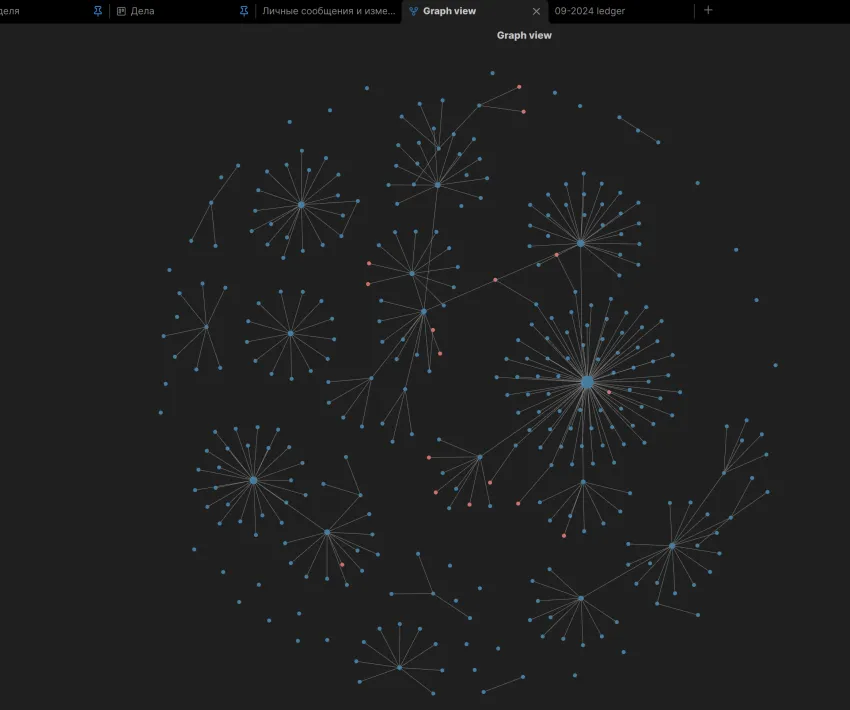
Though I haven't figured out yet why I might need it.
There are some comments and drawbacks too, of course:
– cards in a kanban are not separate files and can't be dragged to other boards, you can only copy the text manually
– because of the note = file and note title = file name principle, you can't use characters in note titles that aren't allowed in file names (a slash, for example). Maybe there's a plugin for this, I haven't looked
– unfortunately, manual sorting works in some obscure way (in Notion you could just drag-and-drop folders into the right order), haven't figured it out yet
– unfortunately, you can't control the width of the workspace from the interface: you can either turn on the "readable" line width option, which spoils working with tabular data if a table has more than 3 columns; or turn it off — then all notes will be full screen width minus the sidebar on the left. I chose the second option.
I'll keep on getting things done.
P.S. Sorry for the censorship.